akcan
August 27, 2026, 9:30am
1
I downloaded, installed, and ran the LibreCAD-2.2.2_alpha1-630-ga05b4261f-win-x64.exe file.
Colours are fully configarable. Try Light Mode.
akcan
August 27, 2026, 1:43pm
3
There is no option in the program settings to switch to light mode. However, if I switch to light mode through Windows settings, LibreCAD is displayed in light mode.
Also, the button colors cannot be changed through the program settings.
better support of light/dark theme as well as generic UI face-lifting will be added in one of nearest updates of alpha version.
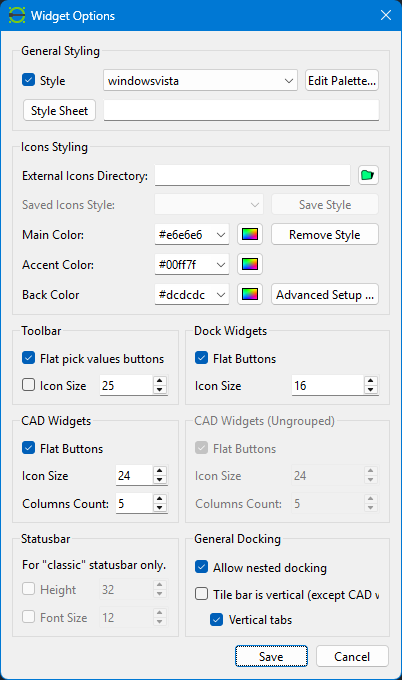
For now, you may try to customize icon colors using widget options → icons styling section and dialog (just alternate colors used by icons).
Please find more details of this are in PR description:
master ← sand1024:Icons
opened 10:10PM - 17 Mar 25 UTC
## Styled icons and workspaces support
This PR is concentrated on generic UI … and face-lifting, and includes support of
1) Styled icons
2) External icons
2) User-defined workspaces
3) Application preferences exchange (export/import).
### Demo
https://youtu.be/mbYkwPAdKJU - icons styling
https://youtu.be/FwvXs1eDYBA - workspaces
### 1) Styled Icons

Now the user may specify the color scheme of icons. That's convenient for users with non-standard windows color scheme (dark etc.), where default LibreCAD look non-natural.
Now each icon, used by LibreCAD is in SVG format (except splash images and cursors, which are PNG).
All SVG icons were reviewed and optimized.
#### Colors Substitution
It is assumed that each icon should include 3 customizable colors:
1) Main - originally black - SVG color value is "#000"
2) Accent - originally green - SVG color value - is "#00ff7f"
3) Background - originally white - SVG color value is "#fff"
#### Icons Styling Setup
Using UI in "Widget Options"->"Icons Styling", the user may specify new values of these color.
Also, via "Widget Options"->"Advanced Styling", its is possible to specify color values for icons in different Modes (Normal, Active, Disabled, Selected) and states (On, Off).
This allows to achieve more interactive feedback from icons in different states as well as address icons visibility issues.
### 2) External Items
The user may specify location of the folder where external icons may be stored. If icons found in that location, it will **OVERRIDE** default icon.
Name of the icon should match the name of the original icons.
Support of icons for different modes and styles is performed via naming of images, with generic format of icon name as:
**{BASE_NAME}\_{MODE}_{STATE}.{EXT}**
Where
1) **BASE_NAME** - base name of icon (like "circle")
2) **MODE** - suffix for desired icon mode. Supported values are:
* normal
* active
* disabled
* selected
2) **STATE** icon state. Values are:
*on
*off
3) **EXT** extension. Supported extensions are:
* svg - ordinary svg file. No colors substitutions will be applied.
* lci - svg file. However, the same colors substitution as described above will be applied to the icon.
*MODE* and *STATE* components are optional. If they omitted, the icon will be applied for all modes and states.
It is possible to override icon via external file only for specific state of the image (say, normal and on (pressed button)).
Such scheme allows to replace built-in icons by the user-provided external ones.
#### Example of naming:
Original built-in image path: ":/icons/angle_3_points.svg"
Name of external icon that will override built-in image (for normal and pressed button state):
*<OVERRIDES_DIR>/icons/angle_3_points_normal_on.svg*
or
*<OVERRIDES_DIR>/icons/**angle_3_points_normal_on.lci***
Where OVERRIDES_DIR is path to external icons.
#### Persistent Icons Styles
The set of icons styling settings may be saved as named style.
Styles are saved in external files. Internal format is JSON and extension is "**.lcis**".
These files are located in icons overrides directory, therefore if directory is not set - support of styles is disabled.
It is possible to exchange icons styles between users just by copying style files.
### 3) Icons Engine - developers note
Support of icons styling was implemented via custom implementation of QIconEngine (with internal implementation similar to built-in QSVGIconEngine).
That custom IconEngine is packed as standard QT icon engine plugin.
That icon engine handles SVG images but with "**.lci**" extensions. Therefore, while in /res directory icons in SVG format are stored, the QT-resources file includes alias for each icon.
That alias is name of the icon with "**.lci**" extension. The code that refers to icon resources (.ui files, c++ files) requests icons by alias (i.e. as resource with "**.lci**") extension instead of "**.svg**".
Functionality of custom Icon Engine is located in **/libraries/lciconengine**.
On deploy/installation, it should be built as DLL for Windows (or shared lib for other platforms) and be installed to the direction where svgiconengine.dll is deployed (i.e *\LibreCAD\iconengines\*").
For development purposed, icon engine plugin might be also installed into QT (near to SVGIconEngine plugin).
If icon engine plugin is not installed - the '.lci' resources will be handled by standard QT SVG icons plugin - and, of course, colors substitutions will not work.
**NOTE:**
So far, only QT project support build of icon engine plugin.
CMake build - **DOES NOT SUPPORT** creation of DLL/shared libraries.
Deployment, installation script - **DOES NOT SUPPORT** proper deployment of icon engine plugin to the installation package.
Here an additional support in creation proper buid/deployment scripts is needed.
---
#### NOTE REGARDING INSTALLATION PACKAGE:
Just a couple of ideas how icons styling may affect the installation package (they are not implemented).
##### Source icons as part of installation package
It is quite reasonable to add original icons as archive to installation layout.
That will let the ordinary user to understand the name of each icon and override it, if necessary, without trying to find the icon in sources of the application.
##### Default Styles
Potentially, it is possible also to include some template icons override directory into installation as well as add several predefined styles into it.
---
#### How to add icons to the codebase
Here is the description of adding icons so that colors substitution/external icon override will be supported:
1) Create SVG (as before), ensure that colors within that SVG corresponds to colors used for colors substitution (Main - "**#000**", Accent - "**#00ff7f**", Background - "**#fff**").
2) Optimize SVG - for example, using SVGCleaner - https://github.com/RazrFalcon/svgcleaner
3) Store icon in needed location under /res directory
4) Add icon to resources file (.qrc)
5) Add alias for icon (name of file + .lci)
6) Refer icon resources from .ui or code using alias.
**Important!**
Icons should be initialized **AFTER** qApp macro start returning not-null value (in other workds, QCoreApplication::instance() is initialized).
If initialization is performed earlier - loading icons from external directories will not work.
### 5) Icons size control
Using "Preferences->Widget options" dialog, the user may preform fine-tuning sizes of buttons that are shown in:

1) Toolbars
2) Left Sidebar Panel (Dock widget with commands)
3) Toolbars in Docking widgets that are docked to right (like Layer list, Block list etc.)
Also, it's possible to specify whether buttons in left sidebar and buttons in doc widgets on right should be flat (auto-rise) or not.
### 6) Support of Workspaces
Support of workspaces was added.
Workspace represents just a named configuration of window size as well as positions of widgets that are visible on the screen.
Workspaces allows the user to optimize UI of the application and make it more suitable for specific tasks (i.e - editing, inspecting drawings, adding dimensions etc.).
Workspaces functions are accessible via toolbar

and menu:

### 6) Support of extended main menu
Now the user may control the state of the main menu and select between 3 forms of the menu
1) default one (with lots of commands packed to "Tools" menu

2) expanded compact - where instead of using single "Tools" menu, all commands are grouped into more focused "Draw", "Modify", "Dimensions" and "Info" menus.

3) expanded to entity group - as previous, yet command in "Draw" menu are expanded to individual menus that corresponds to the entity's type.

The type of the main menu to be shown is controlled by settings in Application Preferences -> Defaults tab.

Widgets and Drawings menus were combined into "Workspaces" menu.
### 7) Settings Exchange
Now it's possible to export Application Preferences to external file and import them back.
Format for file is human-readable, it's just an ordinary JSON.
This functionality is located in Application Preferences -> Paths.

### 8) Issues addressed
The following issues were addressed by PR:
LibreCAD#102
LibreCAD#752
LibreCAD#1144
LibreCAD#1929
LibreCAD#2059
akcan
August 28, 2026, 3:17pm
5
I fixed the issue using the “widget options” settings
Can you add a comparative screen image to show the change for others?
akcan
August 29, 2026, 8:02am
7
See the screenshot in the first message.
I downloaded, installed, and ran the LibreCAD-2.2.2_alpha1-630-ga05b4261f-win-x64.exe file.
I’m using Windows 11 in dark mode.
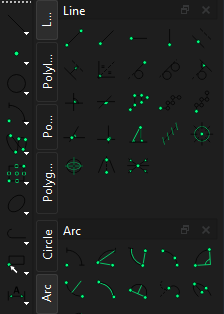
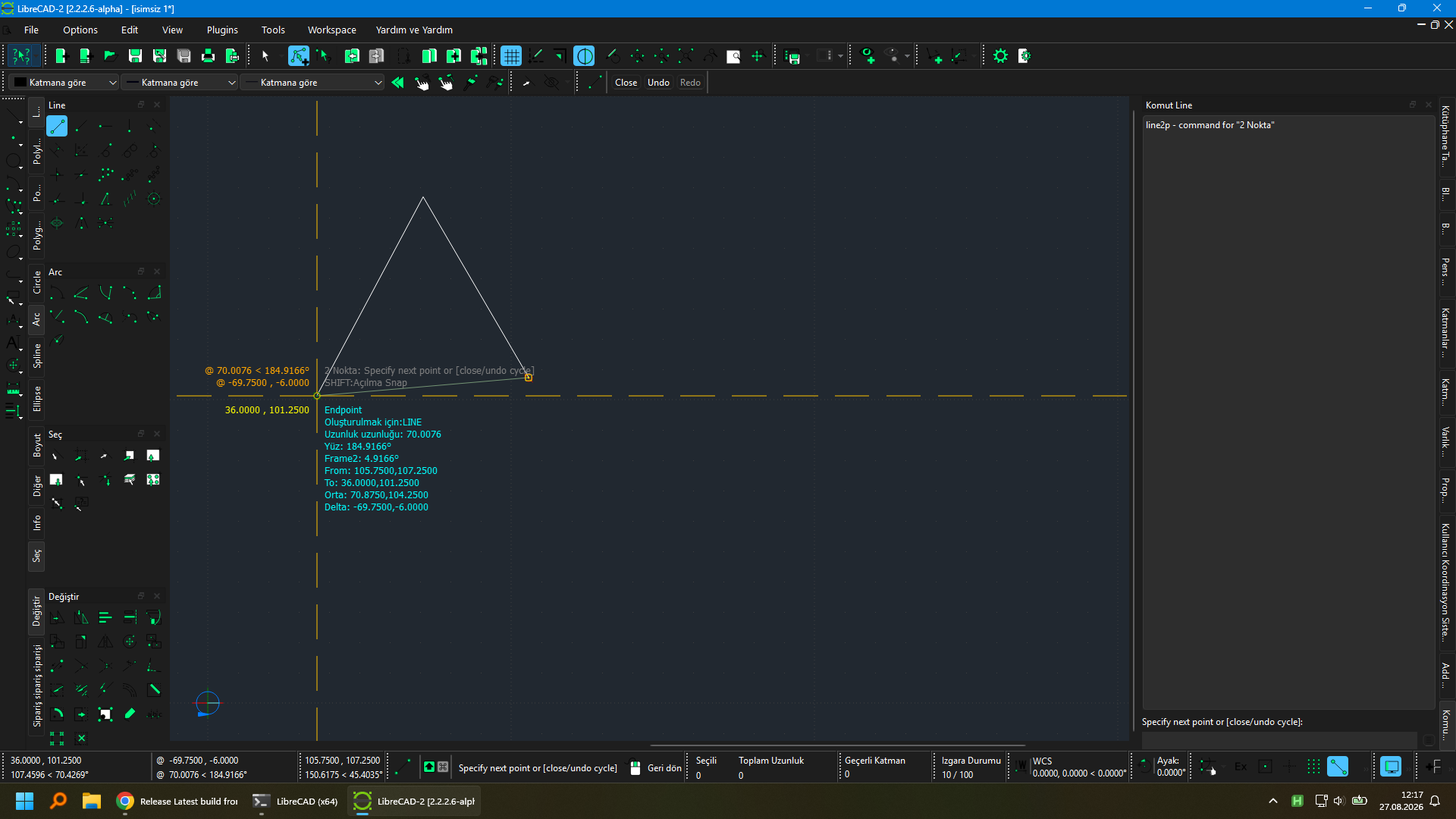
When I launch LibreCAD, it opens in dark mode, as shown in the image. In this mode, it’s hard to make out the button icons. The buttons are faint and hard to distinguish. I don’t think the program has a feature to switch modes, or maybe I just couldn’t find it. To switch LibreCAD to light mode, you need to adjust the Windows light mode settings.
[image]
[image]